Complete Setup Guide · 2026

IPTV Setup Guide 2026:
Firestick, Smart TV
& Every Device Covered

Getting IPTV working on your specific device is straightforward once you understand which connection method your provider uses and how your device handles it. This guide covers every major platform — step by step — for 2026.

Firestick, Smart TV, Android, iOS & PC
M3U & Xtream Codes covered
Updated for 2026

Understanding IPTV Setup Before You Start

IPTV setup is the process of configuring a device and player application to receive and display streams delivered by your IPTV provider. Unlike satellite or cable installations — which require physical hardware connections — IPTV setup is entirely software-based. The configuration typically takes under fifteen minutes once you have your provider's credentials.

Every IPTV setup involves two core elements: a player application that handles stream reception, decoding, and display; and a connection method — either an M3U playlist URL or Xtream Codes portal login — that tells the player where to fetch your channel list and streams. Understanding these two elements before touching any settings eliminates most setup confusion.

The setup experience varies meaningfully between device types. Android TV boxes provide the most flexible environment because they support the widest range of player apps via the Google Play Store. Firestick devices require one additional step — enabling apps from unknown sources — unless the app is available in the Amazon Appstore. Smart TVs running Samsung Tizen or LG webOS have more restricted app ecosystems but work well for straightforward channel viewing. iOS and Android mobile devices support IPTV through their respective app stores.

Before beginning setup on any device, confirm two things with your provider: which connection method they support (M3U, Xtream Codes, or both), and which player app they recommend for your specific device. Different providers use different backend systems, and their recommended app choice often reflects compatibility optimizations that make a real difference in performance.
Setup time
<15 min
Typical configuration time per device once you have your provider credentials.
Connection methods
2
M3U playlist URL or Xtream Codes login — your provider will supply whichever applies.
Most popular player
Smarters Pro
IPTV Smarters Pro supports both connection methods across Firestick, Android TV, iOS and Android.
Recommended connection
Ethernet
Wired connections deliver more stable streams than Wi-Fi, especially for 4K content.

M3U Playlist vs Xtream Codes: Which Setup Method to Use

The first configuration decision in any IPTV setup is choosing — or understanding — which connection method your provider uses. Most quality providers support both; some use one exclusively. Your provider will supply the appropriate credentials when you sign up.

M3U Playlist
M3U URL Method
Your provider gives you a single URL ending in .m3u or .m3u8. Paste this URL into the M3U field of any compatible player and it loads your full channel list automatically. Universally compatible — works with virtually every IPTV player on every device.
Works with all major player apps
Simple single-URL configuration
No account portal required
Xtream Codes
Xtream Codes Portal
Your provider gives you three credentials: a Server URL, a Username, and a Password. Enter these into the Xtream Codes login screen of your player app. The player fetches your channel list dynamically from the provider's portal system.
Better connection management by provider
Supports simultaneous connection limits
Live channel updates without URL change
Which method should I use if both are available?
If your provider supports both, try Xtream Codes first — it typically offers better performance for large channel lists because channels load dynamically rather than from a static file. If Xtream Codes fails on a specific device (some older Firestick models handle large M3U lists more reliably), switch to M3U. Our dedicated IPTV Smarters Pro setup guide covers both connection types for every supported device.

Every Device You Can Use for IPTV in 2026

IPTV works across every major consumer device category in 2026. The setup process and app ecosystem differ between platforms, but the underlying principle is identical: install a compatible player, enter your provider's credentials, and start streaming.

The device you choose affects your experience in three ways: the player apps available to you, the hardware's codec support (which determines which stream formats it can decode efficiently), and the interface quality of available apps on that platform. Each device type has a distinct strengths profile — understanding them helps you prioritise setup effort and choose the right player app.

If you use multiple devices, set up all of them during your trial period — not just the primary screen. Discovering a device compatibility issue after subscribing is more disruptive than discovering it during a free trial. Pay particular attention to older or lower-spec devices in your household, which are most likely to encounter codec or performance limitations.

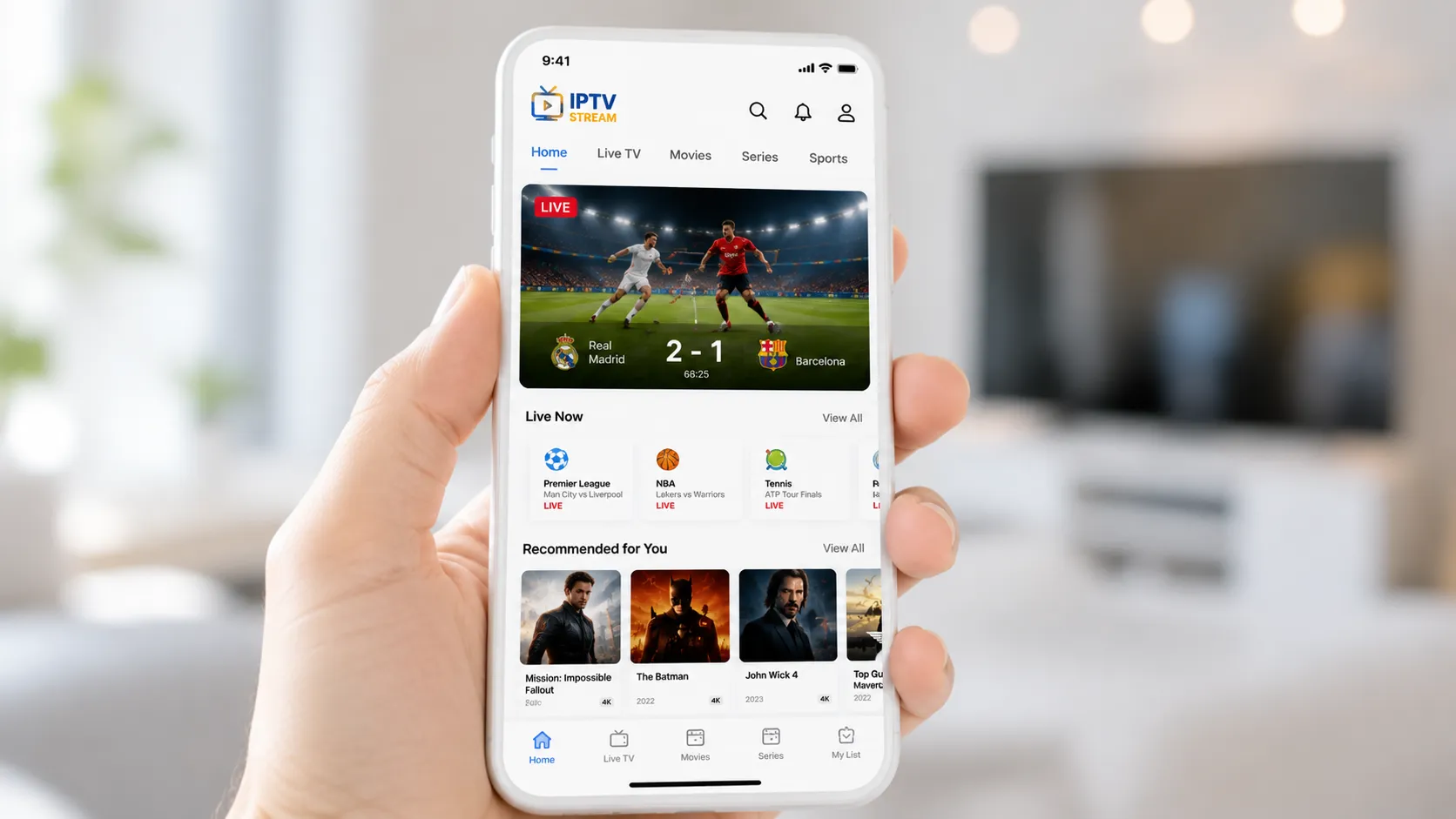
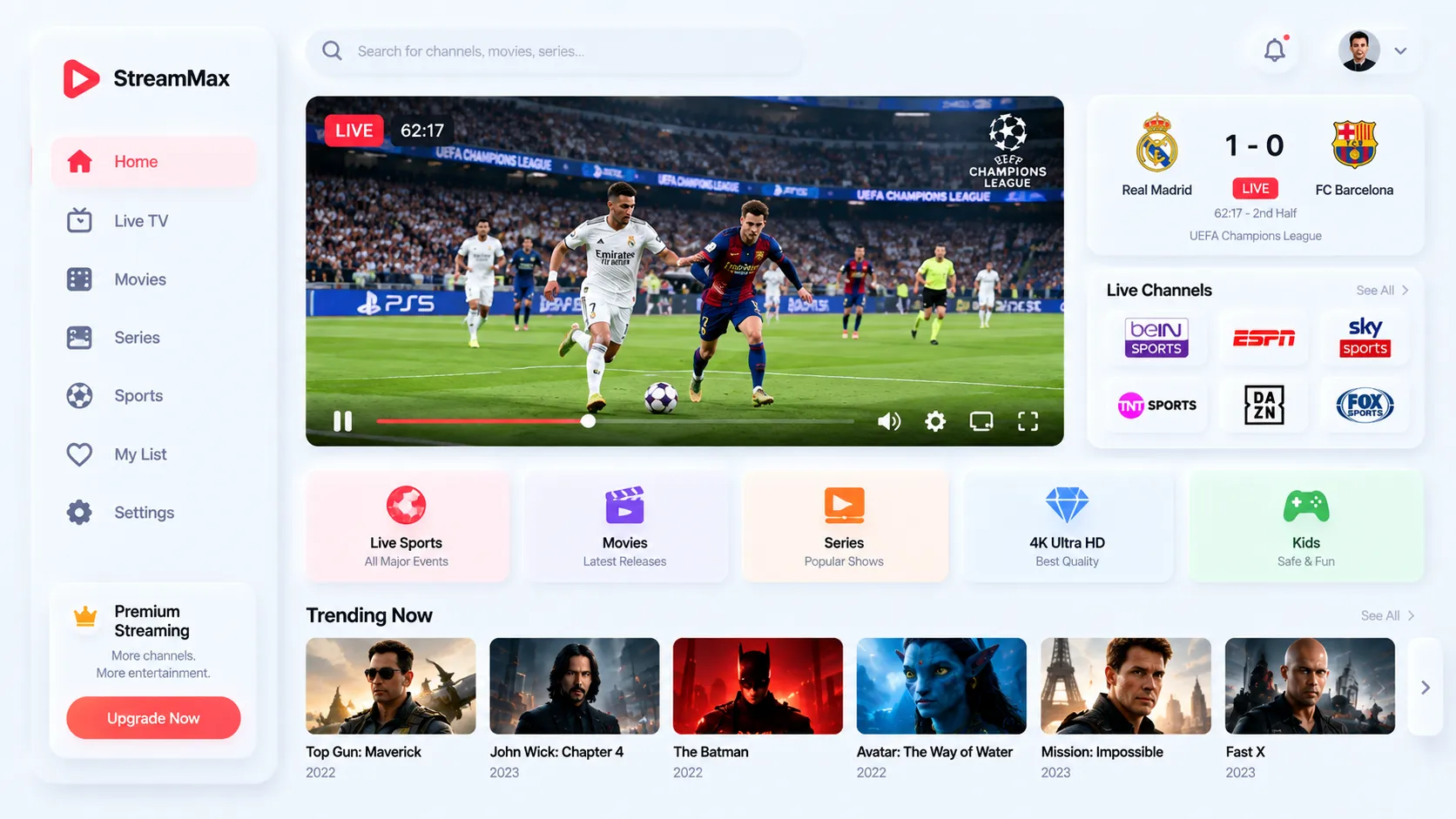
Multiple IPTV setup screens showing configuration on Firestick, Android TV box, Smart TV and smartphone
Amazon Firestick & Fire TV
The most popular IPTV device in the UK and USA. All generations supported; Firestick 4K Max offers the strongest hardware for 4K streams. Requires enabling unknown sources for most IPTV apps.
Most popular
Android TV & Google TV
Full Google Play Store access gives Android TV the widest player app selection. Most flexible IPTV environment — install TiviMate, IPTV Smarters Pro, or GSE IPTV directly from the store with no sideloading required.
Most flexible
Samsung Smart TV (Tizen)
Native IPTV apps available in the Samsung Smart TV App Store. Limited to apps approved by Samsung — fewer options than Firestick or Android TV, but no sideloading required. Best for households primarily using the TV screen.
No sideload needed
LG Smart TV (webOS)
LG Content Store hosts IPTV-compatible apps for webOS. Similar to Samsung in flexibility limitations but excellent for native TV viewing. Check that your specific webOS version is supported by the player app before installing.
Content Store apps
Android Smartphones & Tablets
Google Play Store access makes IPTV setup straightforward on Android mobile. IPTV Smarters Pro, GSE Smart IPTV, and TiviMate are all Play Store–available. Ideal for mobile viewing and as a secondary screen alongside a TV setup.
Play Store available
iPhone & iPad (iOS)
IPTV Smarters Pro and GSE Smart IPTV are available on the App Store for iOS. Apple's strict app review policies mean fewer options than Android, but the available apps are well-maintained. Your provider may recommend a specific iOS-compatible app.
App Store apps
Windows PC & Mac
VLC Media Player supports M3U playlist loading on both Windows and Mac — free, open-source, and reliable for basic IPTV use. Dedicated IPTV players for desktop (such as Kodi with IPTV Simple Client, or MyIPTV Player on Windows) offer better EPG and VOD integration.
VLC supported

How to Set Up IPTV on Amazon Firestick — Step by Step

Firestick is the most common IPTV device in UK and USA households. The setup process takes around ten minutes from start to first stream. Follow these steps for any current Firestick model — the process is consistent across the Firestick 4K, 4K Max, and Firestick HD generations.

1
Enable Apps from Unknown Sources
On your Firestick home screen, go to Settings → My Fire TV → Developer Options. Enable Apps from Unknown Sources. This is required for apps not in the Amazon Appstore, including most IPTV players. (If your app is available directly in the Appstore — search first — you can skip this step.)
2
Install the Downloader App
Search for Downloader in the Amazon Appstore and install it. This free app lets you download and install APK files (Android app packages) onto your Firestick — the standard method for sideloading IPTV players. Enable it in Developer Options if prompted.
3
Download Your IPTV Player
Open Downloader and enter the download URL for your chosen player. For IPTV Smarters Pro, your provider will supply the correct download link — the app is available through the official Smarters website. For a detailed walkthrough of this step, see our IPTV Smarters Pro setup guide.
4
Install the APK
Once downloaded, tap Install on the APK file. After installation completes, you can delete the APK file from Downloader to free up storage. Open the newly installed app from your Firestick app list.
5
Enter Your Provider Credentials
In the player app, choose your connection method — Xtream Codes (Server URL, Username, Password) or M3U URL. Enter the credentials exactly as your provider supplied them, paying careful attention to the server URL format — a missing http:// or incorrect port number is the most common setup error. Tap Add / Connect.
6
Load Your Channel List and Test
The app will fetch your channel list from the provider's server — this may take 30–60 seconds for large lists. Once loaded, open a live channel and verify it plays. Check the EPG is populating correctly. If the stream plays clearly, your setup is complete. If not, see the troubleshooting section below.

Setting Up IPTV on Smart TV, Android TV & Mobile Devices

Smart TV and mobile phone side by side showing IPTV player app configuration screens

Android TV and Google TV

Open the Google Play Store on your Android TV device and search for your preferred player — IPTV Smarters Pro, TiviMate, or GSE Smart IPTV are all available. Install directly without sideloading. Open the app and follow the same credential entry process as Firestick: choose your connection method (Xtream Codes or M3U), enter the credentials your provider supplied, and load your channel list. Android TV's full hardware codec support means most stream formats play natively without compatibility issues.

Samsung Smart TV (Tizen)

On your Samsung Smart TV, open the Samsung Smart TV App Store and search for an IPTV player app. Your provider may have a dedicated Samsung app — check their documentation first. If not, a compatible third-party player for Tizen can be located via the store. Once installed, enter your provider's M3U URL or Xtream Codes credentials within the app's settings. Note that Tizen apps typically support M3U configuration more reliably than Xtream Codes — if Xtream Codes fails, try M3U.

LG Smart TV (webOS)

Open the LG Content Store and search for an IPTV-compatible app. The selection is more limited than Android TV but sufficient for straightforward live channel viewing. Enter credentials through the app's configuration menu. As with Samsung, test both connection methods if your provider supports them, as webOS app compatibility varies by version.

iOS and Android Mobile

Search the App Store (iOS) or Google Play Store (Android) for IPTV Smarters Pro or GSE Smart IPTV. Install, open, and add your provider using Xtream Codes or M3U. Mobile setup is the most straightforward of all platforms — no sideloading, no developer options, just install and configure.

Windows PC and Mac

For basic IPTV on desktop, VLC Media Player (free, open-source) handles M3U playlists on both Windows and Mac: go to Media → Open Network Stream and paste your M3U URL. For a better experience with EPG and VOD, Kodi with the IPTV Simple Client PVR add-on provides a full television interface on desktop.

Need Help With Your Specific Device?

Message us on WhatsApp with your device model and provider credentials. We'll walk you through setup live — no waiting for a ticketing system.

Internet Speed & Network Requirements for IPTV

A successful IPTV installation depends on your internet connection meeting minimum requirements for the stream quality you expect. Setup itself requires very little bandwidth — the connection matters primarily for playback.

As practical benchmarks: standard definition content requires approximately 5 Mbps; HD (1080p) needs 15–25 Mbps; 4K/UHD streams typically require 40–80 Mbps per concurrent stream. These figures assume a stable connection — an unstable 80 Mbps connection will buffer more than a stable 25 Mbps one on HD content. Stability matters more than raw speed for IPTV specifically.

Run your internet speed test on the same device you're using for IPTV — not just on a laptop. A Firestick connected via Wi-Fi in a different room will receive substantially less bandwidth than a wired laptop sitting next to the router. The device-specific result is the one that governs your IPTV experience.

Wired vs Wi-Fi for IPTV

Ethernet (wired) connections deliver consistently more stable IPTV streams than Wi-Fi, even when Wi-Fi signal strength appears good. Physical cabling eliminates radio interference, the packet loss that accompanies it, and the variability introduced by Wi-Fi channel congestion in dense residential environments. If your IPTV device supports Ethernet — via a built-in port or USB-to-Ethernet adapter — use it for any 4K streaming setup.

If Wi-Fi is the only practical option, position the router as close to the streaming device as feasible, use the 5 GHz band over 2.4 GHz for less interference and higher throughput, and ensure no other bandwidth-heavy applications are running concurrently on the same network segment during peak IPTV viewing. Our streaming quality guide covers network optimization in full detail.

Router and network settings for IPTV

Most modern routers require no special configuration for IPTV. If your streams are unstable despite adequate connection speed, check whether your router has IGMP Proxy or IGMP Snooping settings — these protocols affect how multicast traffic (used by some IPTV systems) is handled. Your ISP or router documentation will indicate whether these are relevant to your setup.

For households using a VPN, note that routing IPTV traffic through a VPN introduces additional latency and can cause buffering even on fast connections. If you use a VPN, configure it to split-tunnel your IPTV traffic — routing it directly to the provider's servers rather than through the VPN endpoint — to avoid this performance penalty.

IPTV Setup Not Working? Common Problems and Fixes

Most IPTV setup failures fall into a small number of predictable categories. Work through these in order before contacting your provider.

Credential error — "Invalid login" or "Stream not found": Check every character of your server URL, username, and password. Common errors include missing http:// prefix, incorrect port number, extra spaces, or a capital letter where lowercase is expected. Copy-paste credentials rather than typing them manually when possible.
Channels load but won't play: Try switching connection methods — if you used Xtream Codes, try M3U, or vice versa. Also check that your internet connection meets minimum speed requirements on this specific device. Run a speed test from the device itself.
Buffering immediately after setup: This is usually a network issue, not a configuration problem. Test with a wired Ethernet connection if available, close all other network-heavy applications, and retest. If buffering persists, contact your provider to confirm you haven't exceeded your connection limit.
App crashes or fails to load channel list: Check that the app is updated to the latest version. On Firestick, clear the app's cache (Settings → Applications → Manage Installed Applications → [App Name] → Clear Cache) and relaunch. On older devices, try a lighter-weight player app that places lower demands on the hardware.
EPG not loading or showing incorrect times: EPG data requires a separate fetch from the provider's server. Wait 2–3 minutes after loading channels before judging EPG accuracy — it populates after the channel list. If EPG is consistently inaccurate, contact your provider as this is a server-side metadata issue.
Specific channels missing from your list: Some channels are geographically restricted by the provider and won't appear in your regional lineup even if they appear in promotional materials. Contact your provider with the specific channel name to confirm whether it's available in your country.

Best IPTV Player Apps for 2026: Which to Use and Where

The player app you choose affects your interface quality, EPG experience, VOD access, and overall setup ease. These are the most consistently recommended options across platforms in 2026.

IPTV Smarters Pro

The most widely used IPTV player app in 2026, supporting both M3U and Xtream Codes on Firestick, Android TV, Android mobile, and iOS. Well-maintained, regularly updated, and supports multiple provider accounts simultaneously. The interface is clean and functional across both TV and mobile screen sizes. Our dedicated Smarters Pro setup guide covers every platform in detail.

TiviMate

The preferred choice for Android TV specifically, offering a premium TV-oriented interface with excellent EPG integration and a polished recording function (with the paid Companion subscription). Available on Google Play Store. Not available for iOS or Firestick natively — Android TV is its strongest platform.

GSE Smart IPTV

A cross-platform option available on iOS, Android, and Android TV. Good M3U and Xtream Codes support with a functional interface. A reliable fallback if your primary app isn't available on a specific platform. The iOS version is particularly useful given the limited App Store options for iOS IPTV players.

VLC Media Player

Free, open-source, and available for Windows, Mac, Android, and iOS. For PC and Mac users, VLC's M3U support via Media → Open Network Stream provides a straightforward IPTV experience without a subscription. Interface is basic — no integrated EPG — but highly reliable for playback. See the official VLC download page for the current stable release.

Kodi with IPTV Simple Client

For desktop users who want a full media centre experience, Kodi combined with the IPTV Simple Client PVR add-on provides EPG, recording, and VOD integration alongside IPTV live channels. The setup is more involved than standalone apps, but the result is a comprehensive home theatre environment on PC or Mac.

IPTV Setup Questions — Answered

Enable Apps from Unknown Sources in Settings → My Fire TV → Developer Options. Install the Downloader app from the Amazon Appstore. Use Downloader to install your IPTV player app (your provider will supply the download URL). Open the player, select your connection method (Xtream Codes or M3U), enter your provider's credentials, and load your channel list. The full process typically takes under fifteen minutes.
M3U is a single URL your provider gives you — paste it into the M3U field of any compatible player and your channel list loads automatically. Xtream Codes uses three credentials: a Server URL, a Username, and a Password — enter these into the Xtream Codes login screen of your player. Both methods work well; Xtream Codes generally offers better features and live channel updates, while M3U is more universally compatible with older or budget devices.
IPTV Smarters Pro is the most widely recommended player in 2026 for its cross-platform support (Firestick, Android TV, iOS, Android), clean interface, and compatibility with both M3U and Xtream Codes. TiviMate is the preferred choice for Android TV specifically, with a more polished TV-first interface. VLC remains the best option for Windows PC and Mac desktop use. GSE Smart IPTV is a solid cross-platform fallback, particularly useful on iOS where player options are more limited.
Yes. Samsung Smart TVs (Tizen OS) support IPTV through apps in the Samsung Smart TV App Store — search for your provider's dedicated app or a compatible third-party player. LG Smart TVs (webOS) use the LG Content Store similarly. Both platforms have a more limited app selection than Firestick or Android TV, but work well for straightforward live channel viewing without requiring sideloading or developer mode.
SD content requires approximately 5 Mbps; HD (1080p) needs 15–25 Mbps; 4K content typically requires 40–80 Mbps per concurrent stream. Run your speed test on the actual device you'll use for IPTV — not a laptop — to get accurate figures. Connection stability matters as much as raw speed: a stable 20 Mbps connection outperforms an unstable 80 Mbps one for IPTV specifically.
The most common causes: incorrect credentials (check every character of your server URL, username, and password); insufficient internet speed on the specific viewing device; provider server overload (try during off-peak hours); app needs updating; or connection type incompatibility (try M3U if Xtream Codes fails). Clear the app's cache on your device, double-check credentials, and retest. If the problem persists, contact your provider directly with your device type and the exact error message shown.
Ethernet is significantly better for IPTV streaming stability. A wired connection eliminates radio interference, reduces packet loss, and removes the variability introduced by Wi-Fi channel congestion. For 4K streaming especially, Ethernet is strongly recommended. If your Firestick or streaming device doesn't have a built-in Ethernet port, USB-to-Ethernet adapters are widely available and inexpensive. If Wi-Fi is the only option, use the 5 GHz band and position the device as close to the router as practical.
Search the App Store for IPTV Smarters Pro or GSE Smart IPTV and install your preferred app. Open it, navigate to Add Playlist or Add Account, and enter your provider's credentials — either an M3U URL or Xtream Codes login details. iOS setup requires no developer mode or sideloading. Note that the App Store has stricter review policies, so app availability can vary — your provider may recommend a specific iOS-compatible player if the main options aren't available in your region.

Need a Provider to Set Up With?

If you have the setup knowledge but are still looking for the right service to configure, we can connect you with a trial so you test before committing to a full subscription.