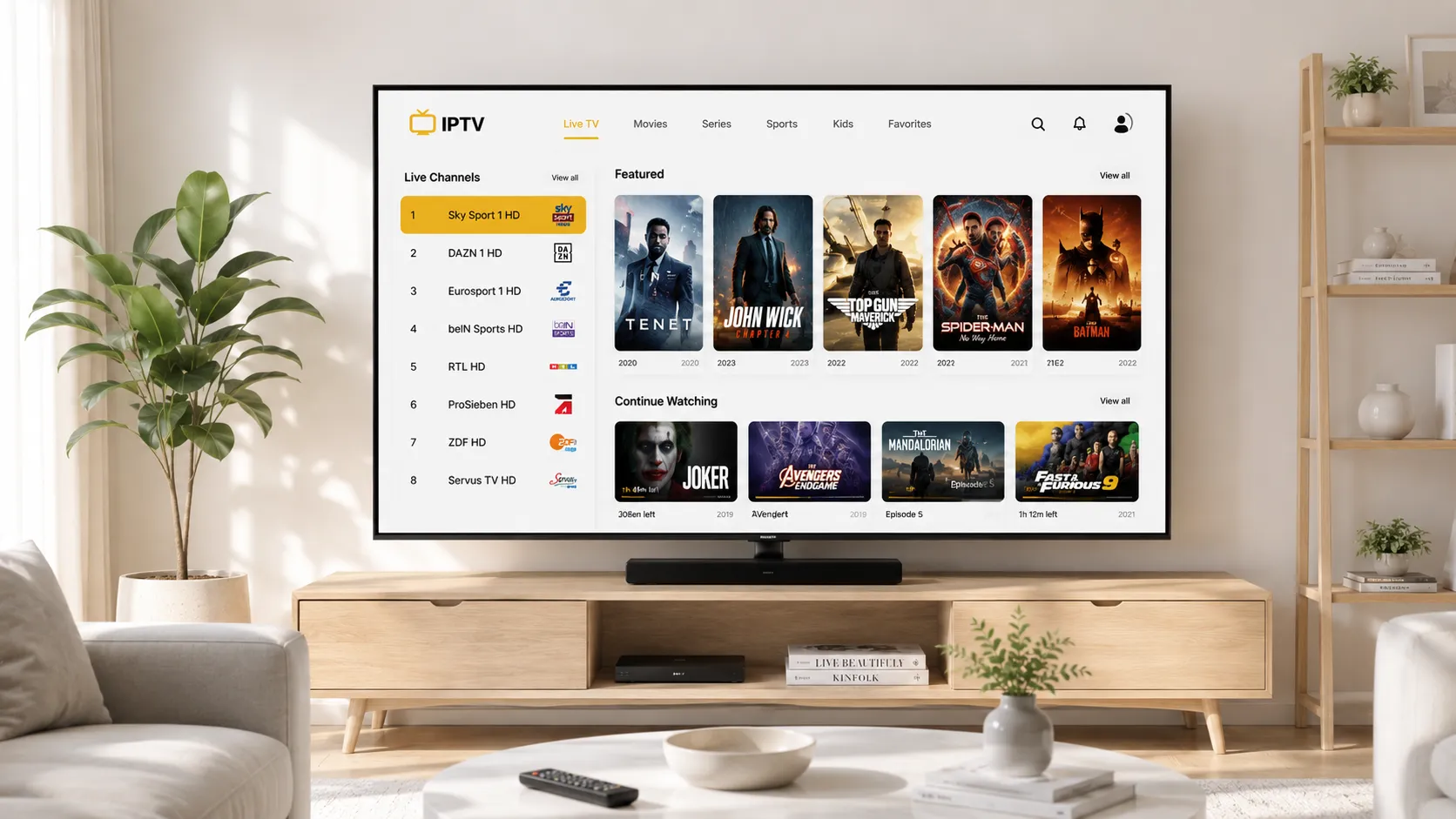
What Is IPTV Smarters Pro and Why It Is Recommended
IPTV Smarters Pro is a dedicated IPTV player application built to support both of the two primary IPTV connection methods — M3U playlist URLs and Xtream Codes portal logins. Unlike generic media players that support IPTV as a secondary feature, Smarters Pro is purpose-built for the format: it handles large channel lists efficiently, includes EPG integration, organises VOD and catch-up libraries, and supports multiple provider accounts simultaneously.
The app's recommendation frequency among IPTV providers comes from its backend compatibility. Smarters Pro supports the Xtream Codes API that many providers use as their backend management system — meaning the app often provides the smoothest integration with provider infrastructure. It is regularly updated and available across Firestick, Android TV, Android mobile, and iOS, making it a practical single-app solution for multi-device households.
Before You Install: What You Need
Before installing IPTV Smarters Pro on any device, confirm two things with your IPTV provider: the connection method they recommend (M3U or Xtream Codes), and your login credentials. For Xtream Codes, you will need a Server URL, a Username, and a Password. For M3U, you will need the playlist URL. Have these ready before opening the app — credential errors during setup are the most common cause of failed first connections.
Also verify that your internet connection meets the minimum speed requirements for your target quality tier: at least 15–25 Mbps for reliable HD streams and 40–50 Mbps for stable 4K. Run a speed test on the specific viewing device before configuring Smarters Pro, not on a separate laptop. A wired Ethernet connection is strongly recommended for 4K streaming on any device that supports it.
IPTV Smarters Pro Setup on Firestick
Step 1: Enable Apps from Unknown Sources
Go to Settings → My Fire TV → Developer Options and enable Apps from Unknown Sources. This step is required unless Smarters Pro is available directly in the Amazon Appstore for your account — search the store first and skip this step if it appears.
Step 2: Install via Downloader
Install the Downloader app from the Amazon Appstore. Open it and enter the download URL your provider supplies for IPTV Smarters Pro. Tap Go, download the APK, and tap Install when prompted. Once installed, you can delete the APK from Downloader to free storage.
Step 3: Add Your Provider
Open IPTV Smarters Pro and tap Add User. Choose your connection method: for Xtream Codes, enter a display name, your Server URL, Username, and Password exactly as your provider supplied — check carefully for missing http:// prefixes, correct port numbers, and no extra spaces. For M3U, paste your playlist URL into the M3U URL field. Tap Add User to connect.
Step 4: Load Channels and Test
The app will fetch your channel list — allow 30–60 seconds for large lists. Once loaded, navigate to Live TV, select a channel, and verify it plays correctly. Check that your EPG is populating. If everything works, your Firestick Smarters Pro setup is complete.
Need Setup Help?
Message us on WhatsApp with your device and provider details. We will walk you through Smarters Pro configuration live — no ticketing queue.
Smarters Pro on Android TV, iOS, and Android Mobile
Android TV and Android mobile
Search for IPTV Smarters Pro in the Google Play Store and install it directly — no sideloading required. Open the app, tap Add User, and follow the same credential entry process as Firestick. Android devices offer the smoothest Smarters Pro experience because of full Play Store availability and comprehensive hardware codec support, including H.265 hardware decoding on most Android TV boxes released from 2022 onwards.
iOS (iPhone and iPad)
Search the App Store for IPTV Smarters Pro. If it is not available in your region's store, your provider may recommend an alternative iOS player — GSE Smart IPTV is a commonly available fallback that supports both M3U and Xtream Codes. Once installed, the setup process mirrors Firestick: add your provider using your preferred connection method and load your channel list.
Smart TVs (Samsung and LG)
Smarters Pro's availability on Samsung Tizen and LG webOS varies. Check your TV's app store for a native version — if unavailable, your provider may offer a dedicated Smart TV app or recommend connecting an Android TV box or Firestick instead for the full Smarters Pro feature set.
IPTV Smarters Pro Not Working: Common Fixes
Channels not loading: Check your credentials character by character. Confirm the server URL includes the correct port (e.g., :8080 or :80 where applicable) and the http:// or https:// prefix. Clear the app cache and retry. If using Xtream Codes fails, try adding the same provider using M3U to rule out a portal-specific issue.
Streams buffering or freezing: Run a speed test on the same device. If speed is adequate, switch from Wi-Fi to Ethernet and retest. If buffering only appears during evenings, the cause is likely provider-side server load — contact your provider rather than adjusting app settings. See our streaming quality guide for the full buffering diagnosis framework.
EPG not loading: EPG data fetches separately after the channel list. Wait 2–3 minutes after the channel list loads before judging EPG accuracy. If EPG remains empty or inaccurate after several minutes, the issue is provider-side metadata — report it to your provider directly.
App crashing on older devices: Update Smarters Pro to the latest version. If the device has limited RAM, close all background apps before launching Smarters Pro. On older Firestick HD models, consider switching to a lighter-weight player app that places lower demands on limited hardware resources.
Frequently Asked Questions
Need a Provider to Set Up Smarters Pro With?
If you have Smarters Pro ready but are still looking for the right service, we can connect you with a trial so you test quality before subscribing.